Configuring And Tuning Up Leo
Leo’s appearance and behavior is extremely configurable. These adjustments are made using Leo’s settings. These settings are not set by a series of dialog boxes or wizards, as they are in many programs. Instead, Leo’s settings are set by specifying them in special Leo outlines. They take effect when the settings are reloaded; in a few cases, Leo itself must restarted.
Leo’s “factory defaults” are set in the LeoSettings.leo outline file that comes with each Leo installation. They can be overridden by changing them in the myLeoSettings.leo outline. Finally, any outline can have its own settings collection. These should be placed under a top-level node having the headline @settings. These outline-local settings override Leo-wide settings, but only for that outline.
Once loaded by Leo, plugins cannot be removed by an outline.
Leo has about 900 settings. That is a large number, but most users will only need to know about or change a few of them. Settings outlines and other settings-related items can be accessed through the Settings menu.
The Settings Files
LeoSettings.leo
Leo’s standard (or default) appearance and behavior are specified in the Leo outline named LeoSettings. This outline can be opened from the Settings/Open LeoSettings.leo item. This outline supplies settings that will be applied to each outline unless they are overridden.
This outline contains settings that define commands, command buttons, menus, keyboard shortcuts, abbreviations, and settings used by Leo’s plugins and internal classes. Nearly everything about Leo’s appearance and behavior is specified or modified by these settings. [1]
Many editors and IDEs let the user change their settings by means of dialog boxes and “wizards”. With Leo, you edit them directly.
Note
Do not change any of these settings here, in LeoSettings.leo. Instead, copy the settings you are interested in to myLeoSettings.leo or to specific outlines for which you want to change those settings.
The reason is that if you customize settings in LeoSettings.leo, next time you update Leo, your customized settings will be lost.
Even though you should not change this outline, it can be invaluable as a source of information on what settings are available, how they are spelled, and what kinds of values they can accept.
myLeoSettings.leo
The myLeoSettings.leo outline contains settings that will be used in all outlines unless overridden for a specific outline. These settings will override settings in LeoSettings.leo. This outline is created in the user’s ~/.leo directory [2].
This outline is not changed or reset when Leo is updated. After Leo reads all the settings from LeoSettings.leo, it then reads myLeoSettings.leo and adds all of them to the collection of all settings that will be applied to each outline when it is opened.
Per-outline settings
Each outline can contain a top-level node with the headline @settings. Settings in this tree override corresponding settings from the two settings outlines covered above. The overrides only apply to the outline that contains the @settings tree.
Appearance Settings
The appearance that Leo presents to users can be modified in two ways. One is decorative features including current line highlighting, right margin guideline, tab width, and so on. The other includes colors and fonts, which are set by the chosen theme outline, covered in the Themes section.
Setting |
Default |
Description |
Note |
|---|---|---|---|
@int tab-width |
-4 |
tab width in spaces |
negative: tabs converted to spaces |
@bool highlight-body-line |
False |
whether to highlight current line |
Highlight color is computed automatically based on the body’s foreground and background colors. |
@string line-highlight-color |
None |
Override automatic selection of highlight color |
Values are CSS color names or hex RGB values |
@bool show-rmargin-guide |
False |
Whether to show the right margin guide |
This setting is missing from LeoSettings.leo; add it with the value True to myLeoSettings.leo if desired. The guide line will be drawn at the number of spaces in the rguide-col setting or the page’s @width directive if present. |
@int rguide-col |
80 |
Column of right margin guide |
Can be overridden by page’s @width directive |
@bool use-gutter |
True |
Shows line numbering in left margin of body (the gutter) |
|
@int gutter-w-adjust |
12 |
Gutter width in pixels |
|
@int gutter-y-adjust |
10 |
Make numbers line up with lines, in pixels |
|
@int page-width |
80 |
Lines are wrapped at or near this value |
Can be changed for any page by using an @width directive. |
@bool chapter-dropdown-left |
False |
Location of the Chapters dropdown box on the Icon Bar |
It is also possible to override a theme’s values for gutter font and colors, but this Guide will leave them to your experimentation.
Recommended Appearance Settings
Appearance settings are naturally a matter of taste, but the following make a good starting point. Add nodes with these headlines to your myLeoSettings file:
@bool highlight-body-line = True
@bool show-rmargin-guide = True
@bool chapter-dropdown-left = True
If the line numbers in the gutter do not line up well vertically, change them with a node with the headline @int gutter-y-adjust = <int>, where <int> is some small integer. It may take several tries to get a good value.
If you want the page width to be something else besides the default (80), add a node @int page-width = <int>.
After changing myLeoSettings.leo, save it. Then select the menu item Settings/Reload Settings/Reload-Settings. If nothing seems to have changed, close and restart Leo [*]
At this point the Leo window will look much like this image:
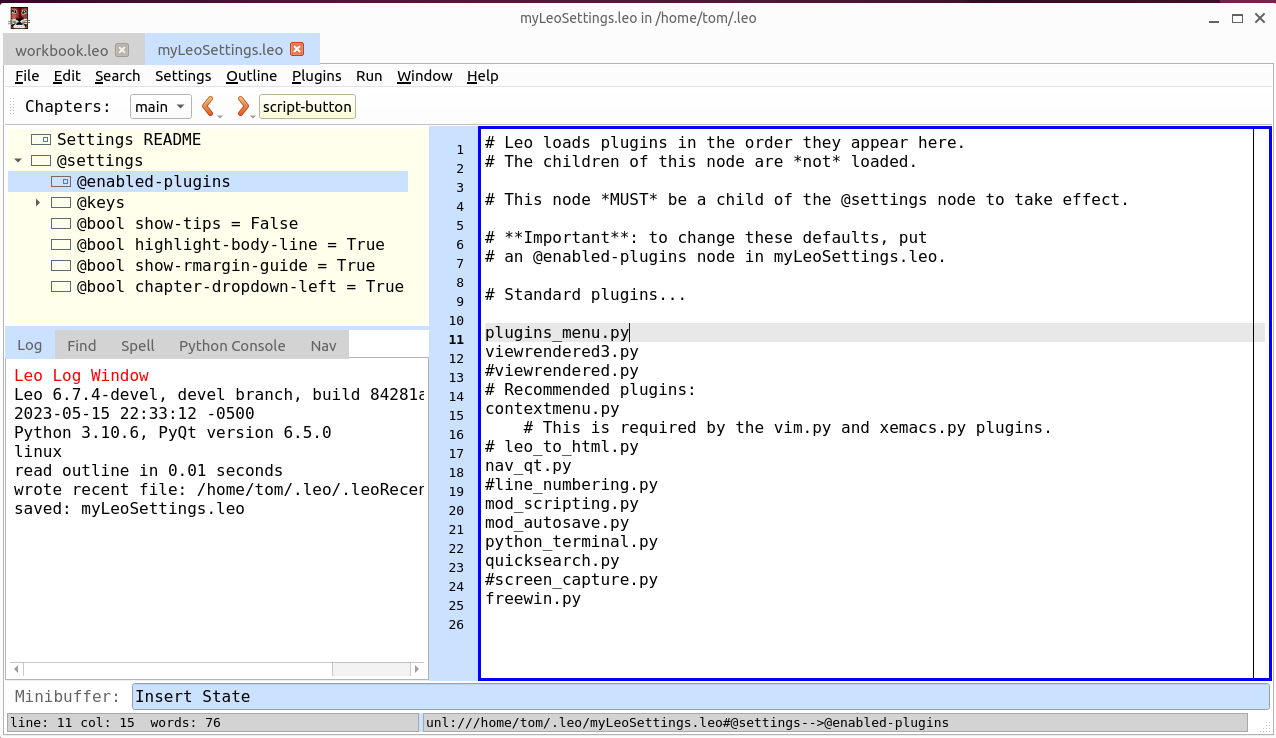
Leo’s window with suggested settings. The line highlight and right margin guideline are visible.
Themes
Leo’s themes are special outlines that specify styling characteristics, including fonts, colors, scrollbar styling, menu styles, and so forth. A theme applies to all outlines opened while it is in effect.
Theme outlines are looked for in leo’s leo/themes directory, If the specified theme is not found there, then the user’s .leo/themes directory will be searched for the theme outline. Or a theme may be specified with its absolute path.
To use a theme, given its name, add a node myLeoSettings.leo with the following headline:
@string theme-name = <theme-name-or-path>
where <theme-name-or-path> is a theme name or absolute path. For example, to use the theme named EKRDark.leo, use the following setting:
@string theme-name = EKRDark.leo
The .leo file extension is optional.
Since a theme is an outline that contains settings, at least some of them can be overridden in your myLeoSettings.leo outline. However, it’s hard to make changes to a theme that improve it, so it’s best to limit overrides to changing font sizes and families, and perhaps minor changes to text and background colors.
Common Themes
Leo’s themes directory has a number of themes having different characteristics. The following lists themes you are most likely to be interested in, although you can experiment with any of the others.
Theme Name |
Remarks |
|---|---|
DefaultTheme.leo |
Black background, bright text |
EKRDark.leo |
Black background, bright text |
EKRLight.leo |
|
LeoBlackSolarized.leo |
Text and background colors are black and gray, not actual solarized colors. |
minimal-ui-tbp_dark_solarized.leo |
|
minimal-ui-tbp_light_quasi-solarized.leo |
Uses a light gray background instead of the actual solarized color. |
minimal-ui-tbp_light_solarized.leo |
|
NullTheme.leo |
Uses the default colors and fonts of the Qt GUI libraries. Body, log font are not mono spaced. |
tbp_dark.leo |
Dark but not black background, light but not white text color. |
The theme can also be specified on the command line that launches Leo, using the --theme- option. For example:
python -m leo.core.runLeo --theme=EKRDark
Note
Traditionally, themes have used the same monospaced fonts for body text, tree headlines, logging panes, and other UI elements. Most people want to use a monospaced font for programming and logging messages. The “tbp” series of themes only uses monospaced fonts for the body and log panes. The tree and most other panes use a non-monospaced font that is thought to be more readable for these elements.
Note
“Solarized” themes use a color scheme that has less contrast than many will be used to. Some people find that too much contrast or brightnesss leads to eyestrain or discomfort. The solarized color schemes may seem too pale at first, but one can come to prefer them.
See the Solarized web site for more on the rationale for these color schemes.
Some of these themes are depicted in Theme Examples.